
Organize All Your AI-Generated
media in one library.
Every image, video, audio file, and document you generate in faktry is automatically saved here. Upload your own files, organize everything into folders, preview in the browser, and use any file as input for your next AI generation - without re-uploading.
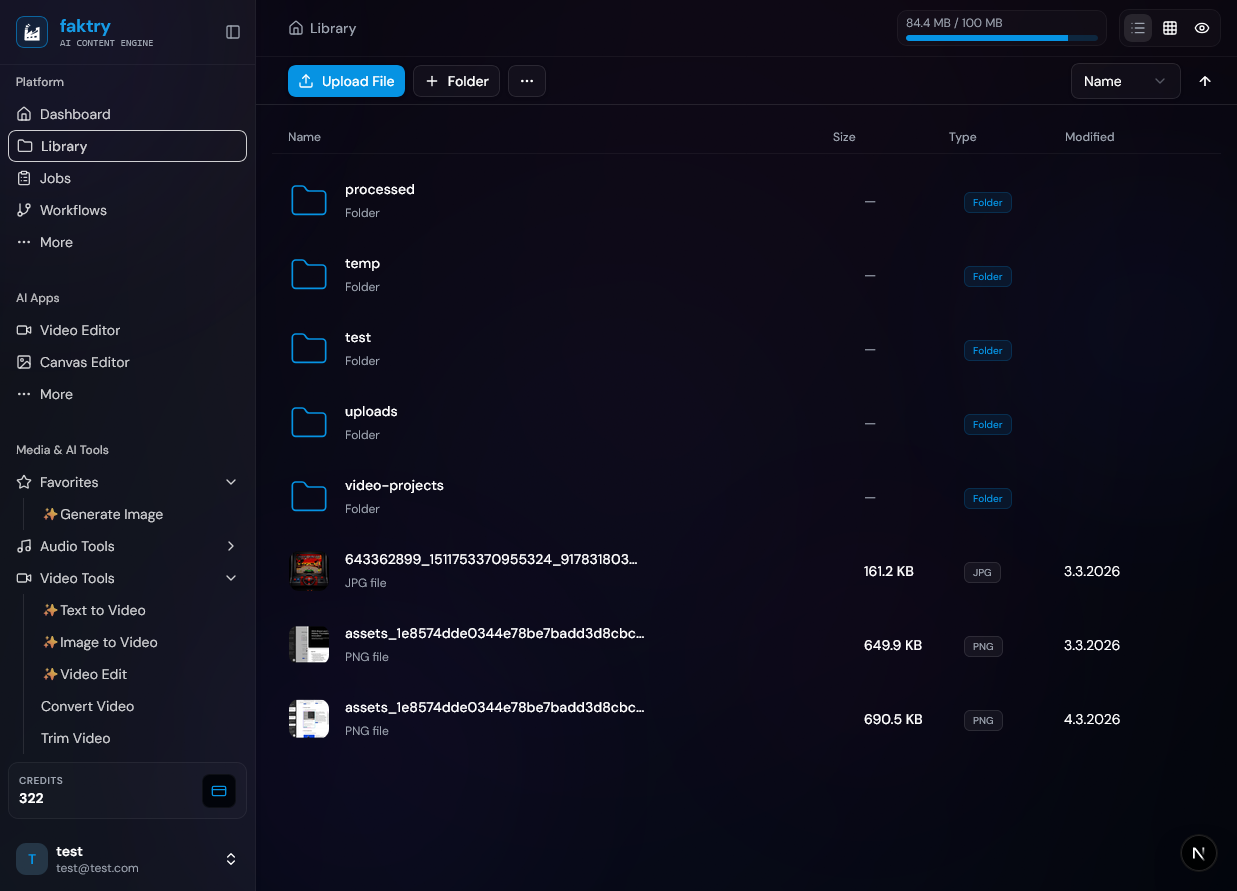
Everything You Need to Manage Your Media
A powerful file management system built specifically for AI-generated content.
Easy Upload
Drag and drop files directly into your library. Supports batch uploading with progress tracking.
Folder Organization
Create nested folders to organize your content. Build a hierarchy that matches your workflow.
Multiple Views
Switch between grid view for visual browsing, list view for details, and preview mode for quick look.
File Preview
Preview images, videos, and even code files directly in the browser without downloading.
Move & Copy
Easily move or copy files between folders. Bulk operations let you organize multiple files at once.
Delete Management
Safely delete files with confirmation dialogs. Keep your library clean and organized.
Sort & Filter
Sort files by name, date, size, or type. Find exactly what you need quickly.
Download Options
Download individual files or batch download multiple files at once.
Storage Management
Monitor your storage usage with visual indicators. Know exactly how much space you have left.
All Your Media in One Place
Store and manage all your AI-generated content, regardless of file type.
Images
JPG, PNG, GIF, WebP, and more with instant preview.
Videos
MP4, MOV, AVI, and more video formats.
Audio
MP3, WAV, FLAC, and more audio formats.
Documents & Code
TXT, MD, JSON, CSV, and code files with syntax highlighting.
Seamlessly Integrated
Your media library works perfectly with all faktry AI generation tools.
Auto-Save Generated Content
All AI-generated images, videos, and audio are automatically saved to your library. No extra steps needed - just generate and your content is ready in your library.
Use Library Content in AI Tools
Your library content is readily available for use in AI generation workflows. Use existing images for image-to-video, or audio for transcription.
Ready to Organize Your Media?
Start building your media library today. All generated content is automatically saved.
Free Storage Included
Frequently Asked Questions
Are AI-generated files automatically saved?
Yes. Every image, video, audio file, and document you generate in faktry is automatically saved to your content library the moment it's created. No manual download and re-upload step is required - the file appears in your library immediately and is ready to use as an input for the next generation or processing step in the same session.
What file types are supported in the content library?
The content library supports all file types produced by faktry: images (JPG, PNG, WebP, GIF), video (MP4, MOV, AVI, WebM), audio (MP3, WAV, FLAC, OGG, AAC), and documents (PDF, TXT, MD, JSON, CSV). Images and videos can be previewed directly in the browser. You can also upload files from your computer in any of these formats.
How do I organize files into folders?
Create folders from the library interface and drag files into them, or move files via the context menu. Nested folders are supported, so you can build a hierarchy like Client → Project → Asset Type. Bulk operations let you move or copy multiple files at once - useful when organizing a completed production batch.
Can I use library files as inputs for new AI generations?
Yes - this is one of the most useful aspects of the content library. Any file saved in your library can be selected as input for a new AI operation without re-uploading. For example, use a generated image as the input for an image-to-video generation, use an audio file for transcription, or use a document for text extraction. The entire pipeline stays within one session.
How do I download my files?
You can download individual files with a single click from any view. For bulk downloads, select multiple files and use the batch download option - faktry packages them into a ZIP archive. Files are available for download at any time; there's no expiry on stored content within your plan's storage limit.
How much storage is included?
Storage allocation depends on your plan. All plans include a base storage amount, and the library dashboard shows your current usage with a visual indicator. Files generated or uploaded consume storage based on file size. To free space, you can delete files you no longer need - the library includes confirmation dialogs to prevent accidental deletion.
Explore More Features
Discover other powerful tools in the faktry suite